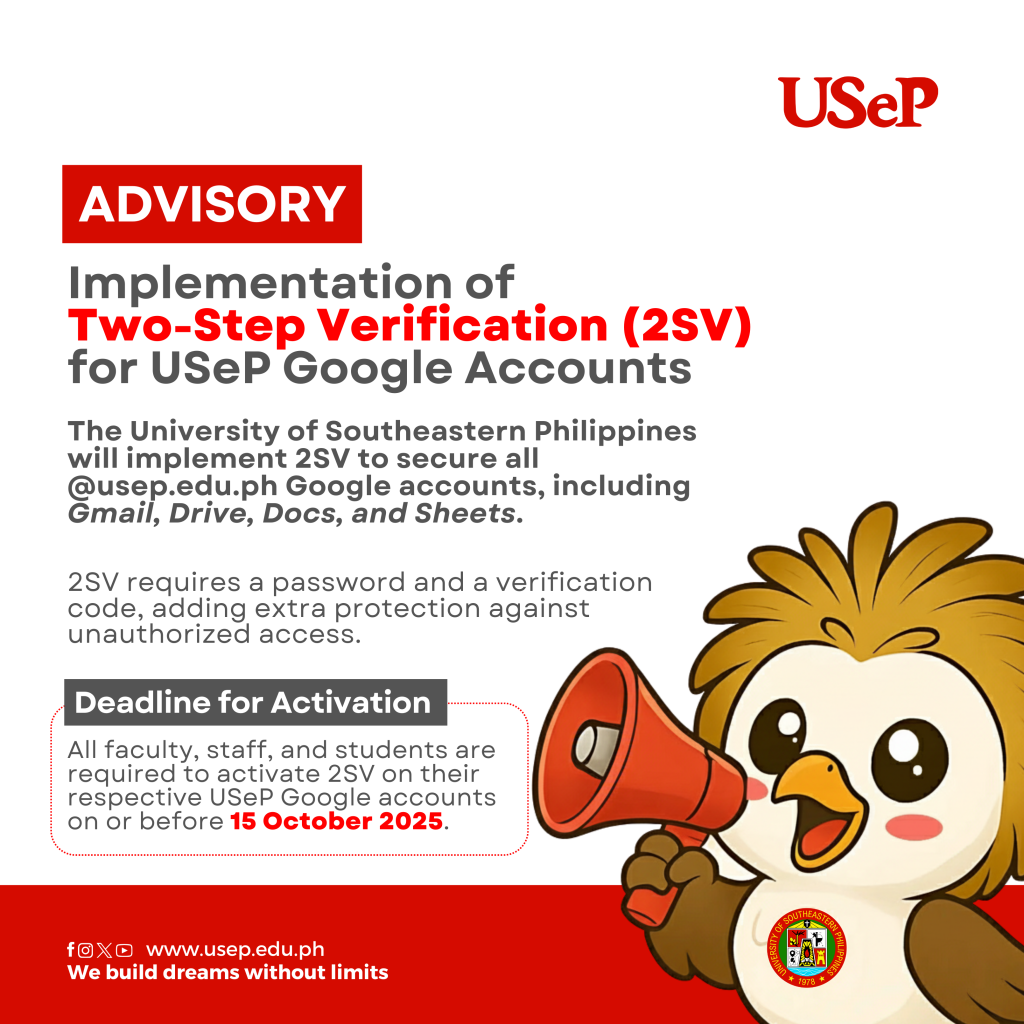





In line with the University’s continuing efforts to strengthen data security and protect its digital assets, USeP will be implementing the Two-Step Verification (2SV) method to secure all University accounts using the @usep.edu.ph domain for Google Workspace services, such as
Gmail, Drive, Docs, and Sheets.
Two-Step Verification is a process that requires users to provide two forms of identity, typically the account password and a verification code sent to a registered device. This significantly reduces the risk of unauthorized access, even in cases where passwords have been compromised.
The 2SV process will only be triggered under specific circumstances, namely: when logging in from a new or unrecognized device, after signing out of an account, or when the browser session expires. Users who remain logged in on the same devices will not be prompted to verify again unless one of these conditions occurs, thereby ensuring a balance between enhanced security and user convenience.
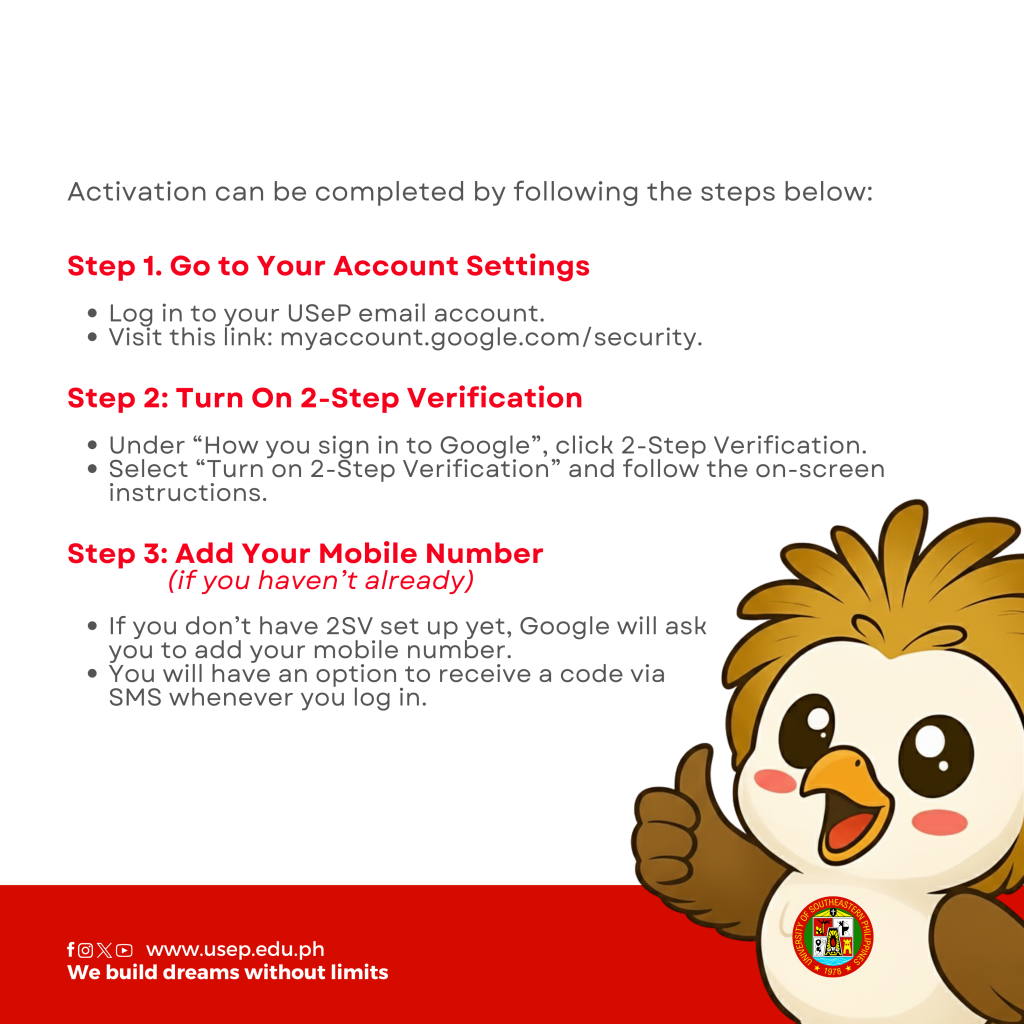
In this regard, all faculty, staff, and students are required to activate 2SV on their respective USeP Google accounts on or before 15 October 2025. Activation can be completed by following the steps below:
Step 1: Go to Your Account Settings
● Log in to your USeP email account.
● Visit this link: myaccount.google.com/security.
Step 2: Turn On 2-Step Verification
● Under “How you sign in to Google”, click 2-Step Verification.
● Select “Turn on 2-Step Verification” and follow the on-screen instructions.
Step 3: Add Your Mobile Number (if you haven’t already)
● If you don’t have 2SV set up yet, Google will ask you to add your mobile number.
● You will have an option to receive a code via SMS whenever you log in.
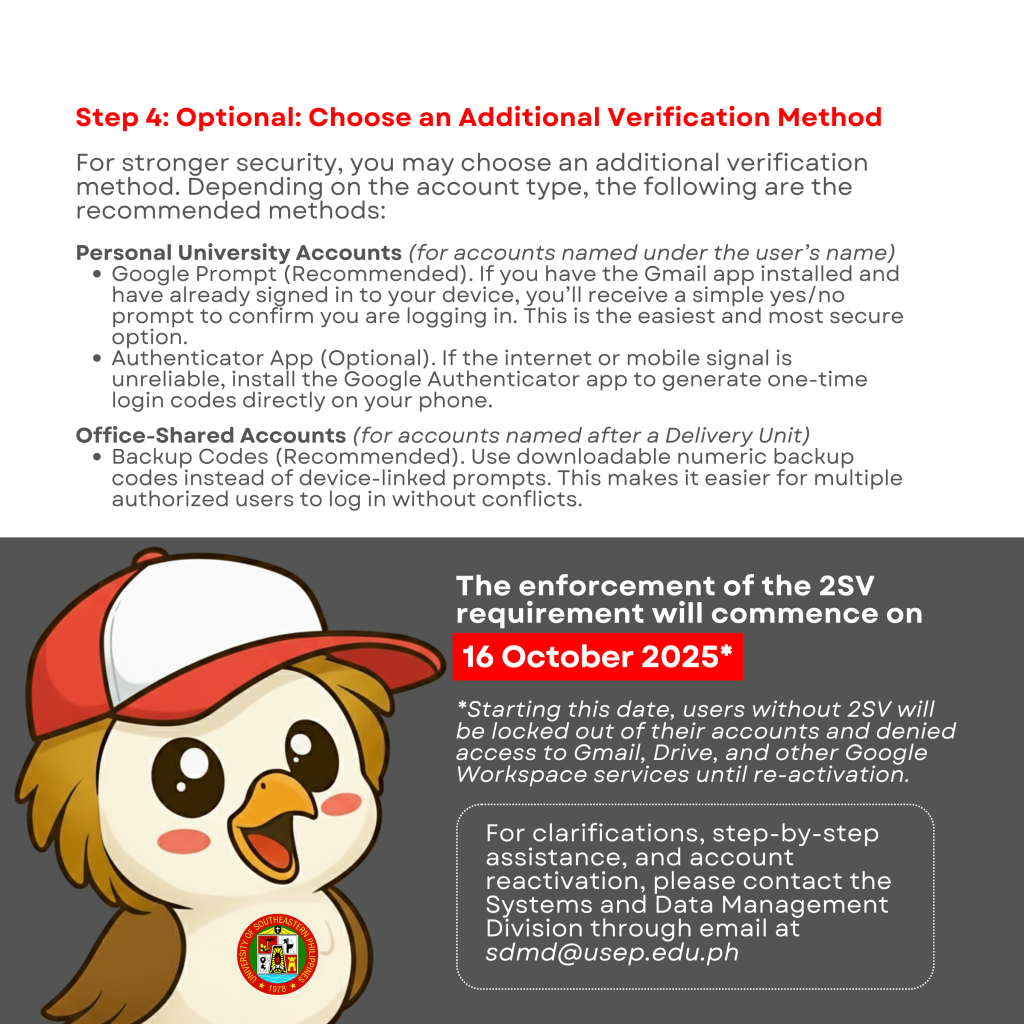
Step 4: Optional: Choose an Additional Verification Method
For stronger security, you may choose an additional verification method. Depending on the account type, the following are the recommended methods:
1. Personal University Accounts (for accounts named under the user’s name)
● Google Prompt (Recommended). If you have the Gmail app installed and have already signed in to your device, you’ll receive a simple yes/no prompt to confirm you are logging in. This is the easiest and most secure option.
● Authenticator App (Optional). If the internet or mobile signal is unreliable, install the Google Authenticator app to generate one-time login codes directly on your phone.
2. Office-Shared Accounts (for accounts named after a Delivery Unit [DU])
● Backup Codes (Recommended). Use downloadable numeric backup codes instead of device-linked prompts. This makes it easier for multiple authorized users to log in without conflicts.
Users who have already enabled 2SV for their University accounts need not make any changes. However, account holders are reminded to avoid using shared devices for login confirmations of personal accounts, while teams managing shared accounts must coordinate in
handling backup codes responsibly.
The enforcement of the 2SV requirement will commence on 16 October 2025. From this date onward, users who have not activated 2SV will be locked out of their accounts and denied access to Gmail, Drive, and other Google Workspace services until their accounts have been reactivated with the required security feature. Furthermore, all newly created University Google accounts, including those issued to incoming students, newly hired employees, and official DU accounts, will be required to enable 2SV upon first login. Access to services will only be granted once the setup has been successfully completed.
For clarifications, step-by-step assistance, and account reactivation, please contact the Systems and Data Management Division through email at [email protected] or call local 271.